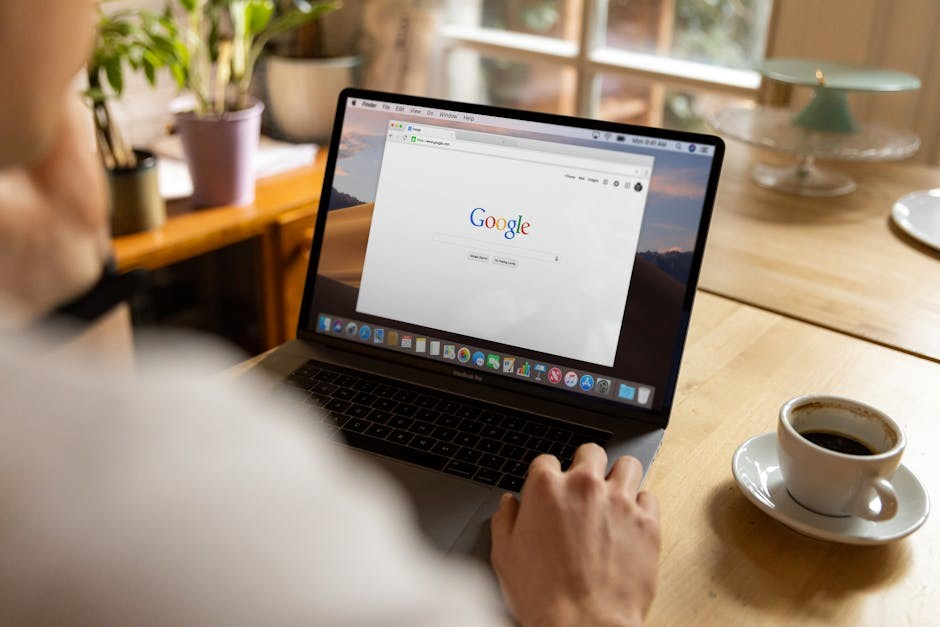
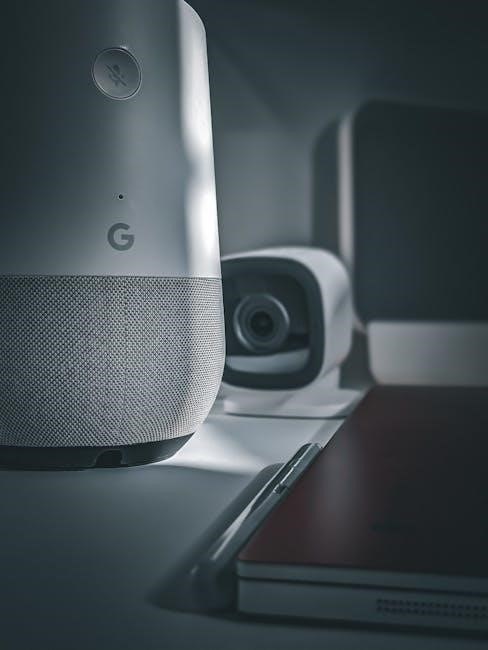
Google Home seamlessly integrates into daily life, offering voice-controlled assistance and smart home management. It’s the central hub for a connected experience, simplifying tasks.
What is Google Home?
Google Home represents a family of smart speakers and displays powered by the Google Assistant. These devices respond to voice commands, allowing users to control smart home devices, play music, set alarms, and access information—all hands-free. Essentially, it’s a voice-activated hub designed to simplify daily routines and provide convenient access to Google’s vast ecosystem of services.
The core functionality revolves around the “Hey Google” wake word, triggering the Assistant to listen and respond. Beyond basic queries, Google Home learns user preferences over time, offering personalized experiences. It’s more than just a speaker; it’s an intelligent assistant integrated into the home environment, enhancing convenience and connectivity.
Google Home Devices: A Quick Overview
The Google Home lineup includes several devices catering to different needs. The original Google Home (now discontinued) paved the way, followed by the Google Home Mini (now Nest Mini), a compact and affordable option. The Google Home Max offered superior sound quality for audiophiles.
Currently, Nest Audio provides a balanced experience, while Nest Hub and Nest Hub Max add visual displays for richer interactions – showing photos, videos, and smart home controls. Devices like Chromecast integrate seamlessly, enabling content streaming. Each device connects to your Wi-Fi network and requires a Google Account for setup and personalization, offering varying features and price points.

Setting Up Your Google Home
Initial setup involves downloading the Google Home app, creating or logging into a Google Account, and connecting your device to a stable Wi-Fi network.
Downloading and Installing the Google Home App
The first step to enjoying your Google Home is downloading and installing the official Google Home app on your smartphone or tablet. This application serves as the central control panel for your device and all connected smart home accessories. You can find the Google Home app readily available for both Android devices via the Google Play Store and for iOS devices through the Apple App Store.
Simply search for “Google Home” within the respective app store and tap the “Install” or “Get” button. Once downloaded, open the app and grant any requested permissions, such as location access, to ensure optimal functionality. The app will then guide you through the subsequent setup process, making it user-friendly even for beginners.
Creating or Logging into Your Google Account

To fully utilize your Google Home device, a Google Account is essential. If you already possess a Google Account – perhaps used for Gmail, YouTube, or other Google services – simply log in using your existing credentials within the Google Home app. If you’re new to the Google ecosystem, don’t worry! The app provides a straightforward option to create a new account.
Follow the on-screen prompts to enter your personal information, choose a secure password, and agree to the terms of service. This account will be linked to your Google Home, enabling personalized experiences and access to a wide range of features. Ensure you remember your login details for future access and management.

Connecting to Wi-Fi
Establishing a stable Wi-Fi connection is crucial for your Google Home’s functionality. Within the Google Home app, after logging in, the app will automatically search for available Wi-Fi networks. Select your home network from the list presented. You’ll then be prompted to enter your Wi-Fi password – ensure accuracy, as incorrect credentials will prevent connection.
The app will guide you through the connection process, displaying a progress indicator. Once connected, your Google Home will display a confirmation message. If connection fails, double-check your password, ensure your router is functioning correctly, and try again. A strong Wi-Fi signal is vital for optimal performance.

Voice Commands and Features
Activate Google Home with “Hey Google,” then issue commands to control devices, play media, set reminders, and access information effortlessly.
Basic Voice Commands (e.g., “Hey Google”)
Initiating a command with “Hey Google” or “Okay Google” is the foundation of interacting with your Google Home device. This wake word signals the device to listen for your request. Following the wake word, clearly state your command – for example, “Hey Google, what’s the weather?” or “Okay Google, play music.”
Simple inquiries like time checks (“Hey Google, what time is it?”) and basic calculations (“Okay Google, what is 5 plus 7?”) are readily handled. You can also ask general knowledge questions (“Hey Google, who is the president?”). The system is designed to understand natural language, so phrasing doesn’t need to be overly precise, but clarity improves accuracy. Experiment with different phrasing to discover what works best for you and your Google Home.
Controlling Smart Home Devices
Google Home excels at controlling compatible smart home devices, transforming your house into a connected ecosystem. After linking devices – like lights, thermostats, and locks – through the Google Home app, voice commands become your remote control. For instance, say “Hey Google, turn on the living room lights” or “Okay Google, set the thermostat to 72 degrees.”
Device grouping simplifies control; create groups like “Downstairs” to manage multiple devices simultaneously. Commands like “Hey Google, turn off Downstairs” will affect all assigned devices. Ensure devices are compatible with Google Assistant for seamless integration. Explore routines within the app to automate actions based on time or triggers, further enhancing your smart home experience.
Playing Music and Podcasts
Google Home offers versatile audio entertainment, supporting various music and podcast services. Link your preferred accounts – like Spotify, YouTube Music, or Pandora – within the Google Home app. Then, simply say “Hey Google, play my Discover Weekly playlist” or “Okay Google, play the latest episode of [Podcast Name].”
Voice commands extend beyond specific playlists and podcasts; request genres, artists, or albums. Control playback with commands like “Hey Google, pause,” “Okay Google, next song,” or “Hey Google, volume up.” Multi-room audio is also supported; group multiple Google Home devices to play synchronized music throughout your home, creating an immersive listening experience.
Setting Alarms, Timers, and Reminders
Google Home excels at time management through voice commands. To set an alarm, say “Hey Google, set an alarm for 7 AM” or “Okay Google, wake me up at sunrise.” You can create multiple alarms with custom labels, like “Work Alarm” or “Medication Reminder.” Timers are equally simple: “Hey Google, set a timer for 20 minutes” will initiate a countdown.
Reminders help you stay on schedule. Use commands like “Hey Google, remind me to take out the trash at 8 PM” or “Okay Google, remind me to call Mom tomorrow.” These reminders are synced across your Google account, accessible on other devices. Manage and edit existing alarms, timers, and reminders within the Google Home app for complete control.

Troubleshooting Common Issues
Resolving connectivity, voice recognition, or general performance problems is often straightforward. A quick reboot or factory reset can frequently restore functionality.
Google Home Not Connecting to Wi-Fi
Experiencing Wi-Fi connection issues with your Google Home device is a common frustration. First, ensure your Wi-Fi router is functioning correctly and broadcasting a signal. Verify that you’re entering the correct Wi-Fi password within the Google Home app during setup.
Try restarting both your Google Home device and your Wi-Fi router – a simple power cycle often resolves temporary glitches. Confirm your Google Home is within range of the Wi-Fi signal; distance and obstructions can impact connectivity.
If problems persist, check for firmware updates for both your router and the Google Home device via the Google Home app. Finally, consult the Google Workspace Status Dashboard to rule out any widespread Google service outages affecting connectivity.
Voice Recognition Problems
If your Google Home struggles to understand your commands, several factors could be at play. Ensure you’re using the correct wake word (“Hey Google”) clearly and distinctly. Background noise – like television or music – can interfere with voice detection, so minimize distractions.
Check the microphone isn’t physically blocked or obstructed. Reposition your Google Home device; optimal placement avoids corners and enclosed spaces. Within the Google Home app, verify the voice match feature is properly configured for each user.
Consider retraining Google Assistant to better recognize your voice. If issues continue, a factory reset might be necessary, but remember this will erase personalized settings.
Factory Resetting Your Google Home
A factory reset restores your Google Home to its original settings, erasing all personal data and configurations. This is a last resort for persistent issues. Locate the reset button – typically a small indentation on the device’s base. Use a paperclip or similar tool to press and hold the reset button.
Continue holding the button for approximately 15 seconds, until the device confirms it’s resetting. The device will then reboot and require complete re-setup through the Google Home app. Remember, this process disconnects the device from your Wi-Fi and Google account.
Be aware that all linked services and routines will need to be reconfigured after the reset is complete.

Advanced Google Home Features
Unlock Google Home’s full potential with Routines, Guest Mode, and seamless third-party service linking for a truly personalized and interconnected smart home experience.
Google Home Routines
Routines are incredibly powerful features within the Google Home ecosystem, allowing you to automate multiple actions with a single voice command or trigger. Imagine saying “Hey Google, good morning” and having your lights turn on, the news play, and your coffee maker start – all automatically!
You can create custom Routines within the Google Home app, specifying the triggers (like voice commands, time of day, or sunrise/sunset) and the actions to be performed. Actions can include controlling smart home devices, playing music, providing weather updates, reading your calendar, and much more.
Pre-set routines are also available for convenience, but the real magic happens when you tailor them to your specific needs and preferences. Experiment with different combinations to streamline your daily life and create a truly personalized smart home experience.
Guest Mode and Multiple Users
Google Home supports multiple users, enhancing personalization and privacy within your household. Each user can link their own Google account to the device, receiving tailored responses to questions, personalized music recommendations, and access to their individual calendars and reminders.
Guest Mode provides a convenient way for visitors to interact with your Google Home without needing to link their own accounts. Guests can play music, ask general questions, and control certain smart home devices, but their activity won’t be saved to a personal profile.
Managing users is done through the Google Home app, allowing you to easily add, remove, and control access levels. This ensures a secure and customized experience for everyone in your home, balancing convenience with individual privacy.
Linking Third-Party Services
Google Home’s versatility expands significantly through linking third-party services. The Google Home app allows seamless connection to a vast ecosystem of apps and platforms, enhancing functionality beyond Google’s native capabilities.
Popular integrations include music streaming services like Spotify and Pandora, allowing voice control of your favorite playlists. You can also link smart home platforms beyond Google’s ecosystem, like Samsung SmartThings or Philips Hue, for unified control.
Linking is typically done within the Google Home app’s settings, often requiring you to log in to the third-party service. Once connected, you can use voice commands to interact with these services, creating a truly integrated smart home experience.

Google Home Security and Privacy
Google Home prioritizes user privacy with adjustable settings for voice data and activity controls, ensuring a secure and personalized smart home experience.
Understanding Google Home’s Privacy Settings
Google Home offers robust privacy controls within the Google Home app, empowering users to manage their data. You can review and delete past voice activity through the ‘My Activity’ section of your Google Account.
Adjusting settings allows control over what information is saved and how it’s used to personalize experiences. Specifically, you can disable voice recording entirely, or choose to automatically delete recordings after a set period – 3 or 18 months are typical options.
Furthermore, Google provides transparency regarding data usage, explaining how voice commands are processed to fulfill requests. Understanding these settings is crucial for maintaining a comfortable level of privacy while enjoying the convenience of a smart home assistant. Regularly reviewing these settings is recommended.
Managing Voice Data
Google Home stores voice recordings to improve speech recognition and personalize your experience, but you maintain control over this data. Within the Google Home app and your Google Account’s ‘My Activity’ section, you can access and review all recorded voice commands.
Deleting individual recordings or bulk deleting by date or command is straightforward. Google also offers the option to turn off voice recording altogether, though this will limit certain features. You can also choose automatic deletion after 3 or 18 months.
Remember that even with voice recording disabled, some data may still be processed for essential functionality. Regularly checking and managing your voice data ensures your privacy preferences are upheld, providing peace of mind while utilizing Google Home’s capabilities.
Resources and Support
Google provides extensive support through the Google Home Help Center and the Google Workspace Status Dashboard for troubleshooting and updates.
Google Home Help Center
The Google Home Help Center is your primary destination for resolving any issues or learning more about your device. It’s a comprehensive online resource filled with articles, troubleshooting guides, and frequently asked questions covering a vast range of topics.
You’ll find detailed instructions on setting up your Google Home, connecting to Wi-Fi, managing your account, and utilizing various voice commands. The Help Center also offers specific guidance for controlling smart home devices, playing media, and customizing routines.
Furthermore, it provides solutions for common problems like voice recognition issues or connectivity failures. Searching the Help Center is straightforward, allowing you to quickly pinpoint relevant information. It’s regularly updated with new content and solutions, ensuring you have access to the latest support resources.
Google Workspace Status Dashboard
The Google Workspace Status Dashboard is a crucial resource when experiencing issues with your Google Home, as its functionality relies on underlying Google services. This dashboard provides real-time information regarding the operational status of all Google services, including those impacting Google Home’s performance.
If you’re encountering problems accessing your device or specific features, checking the dashboard can quickly determine if there’s a widespread service disruption. It details any ongoing incidents, their severity, and estimated resolution times.
This allows you to understand if the problem lies with your setup or a broader Google issue. The dashboard covers services like Google Assistant, Wi-Fi connectivity, and account access – all vital for a smooth Google Home experience. Regularly checking it can save troubleshooting time.